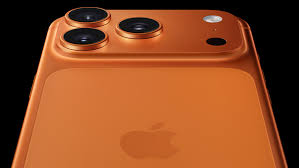



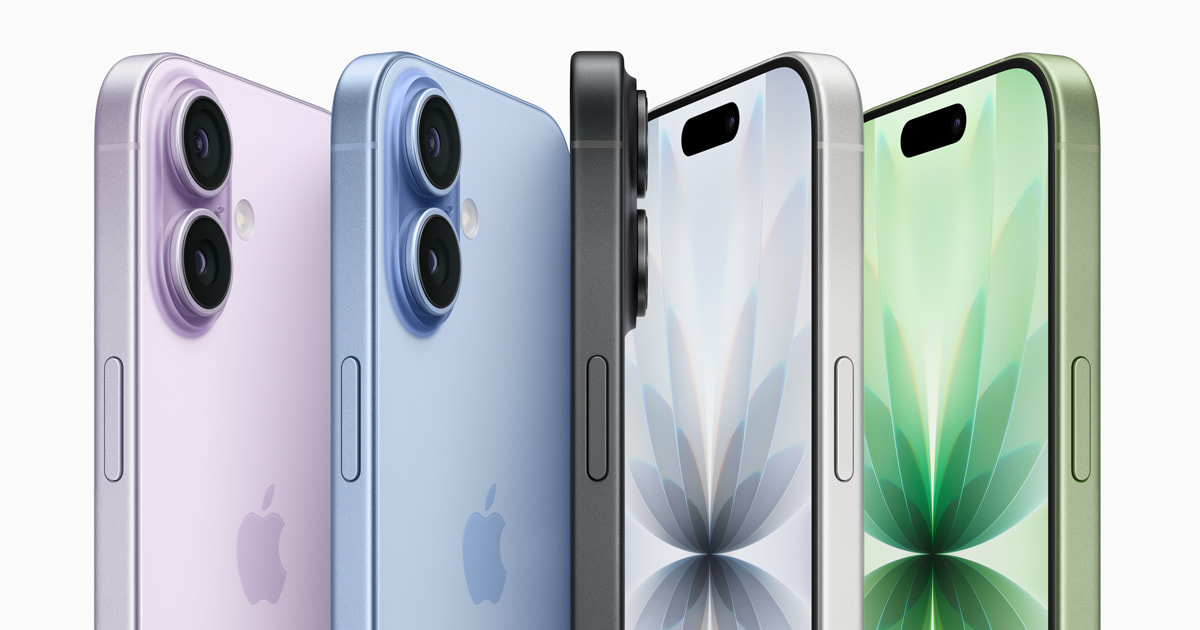
So, your brand-new iPhone 17 seemed perfect — sleek design, lightning-fast performance, and all the bells and whistles you could want. But then come the dropped calls, weak signals, and those annoying message delivery fails. Yep, you’re not alone. Many users are reporting Cellular Connectivity Issues on iPhone 17, and it’s turning that dream device into a bit of a headache.
The culprit? A mix of Apple’s brand-new antenna design, its first-generation N1 wireless chip, and a few pesky software bugs in iOS 26. Together, they’re causing the Cellular Connectivity Issues on iPhone 17 that have left users in both the U.S. and Canada scratching their heads. If you’ve noticed your signal acting up or your calls cutting out, you’re probably caught up in the same wave of Cellular Connectivity Issues on iPhone 17 making headlines right now.

Table of Contents

1. Toggle Airplane Mode Like a Pro
First things first — sometimes a quick network refresh is all your iPhone needs:
- Swipe down to open the Control Center.
- Tap the Airplane Mode icon to turn it on.
- Wait 10-15 seconds (grab that coffee!).
- Tap it again to turn off and force your phone to reconnect to cellular towers.
This simple reset often clears temporary glitches causing weak connection or missed signals.
2. Reset Network Settings
If your calls keep dropping or data keeps stalling, resetting network settings can help flush out lingering snafus:
- Go to Settings > General > Transfer or Reset iPhone > Reset > Reset Network Settings.
- Confirm and enter your passcode if prompted.
- This clears saved Wi-Fi networks, Bluetooth pairings, and cellular settings — but can fix those hidden config errors slowing your signal.
Pro tip: Keep Wi-Fi passwords handy before doing this!
3. Check for Carrier Settings Update and iOS Updates
Apple and carriers often push updates that optimize connectivity:
- Go to Settings > General > About.
- If a carrier update is available, a prompt will appear — tap Update.
- Similarly, check Settings > General > Software Update to install the latest iOS patches, including fixes specifically for iPhone 17 cellular issues.
Staying updated is your best defense against bugs.
4. Disable iCloud Private Relay Temporarily
Some users have found that Apple’s Private Relay interferes with cellular signal or networking apps:
- Go to Settings > Your Name > iCloud > Private Relay.
- Turn it off temporarily and test your signal and calls.
- If performance improves, you might want to keep it off until Apple addresses compatibility with iPhone 17 hardware and carriers.
5. Manage 5G Settings to Improve Stability
iPhone 17 supports advanced 5G connectivity, but if your area has spotty 5G service, you might get better results switching to 4G:
- Go to Settings > Cellular > Cellular Data Options > Voice & Data.
- Select LTE or 5G Auto instead of 5G On for more stable connections and longer battery life.
If issues persist despite all the tricks, get in touch with your carrier:
- Ask them to refresh your SIM or cellular provisioning.
- Check if there’s a known network outage or maintenance in your area.
- Some users resolved issues by switching SIM cards or testing their iPhone 17 on a different carrier network.
Conclusion
Dealing with Cellular Connectivity Issues on iPhone 17 can be annoying, but the good news is that most problems stem from software glitches or setup quirks — not hardware failures. Apple is already rolling out updates to tackle them, so relief is on the way. In the meantime, following these simple steps can help you stay connected and minimize disruptions.
While Cellular Connectivity Issues on iPhone 17 may test your patience, they’re usually temporary — and knowing how to handle them puts you one step ahead until Apple smooths things out. So hang in there, your fix for Cellular Connectivity Issues on iPhone 17 is closer than you think.