


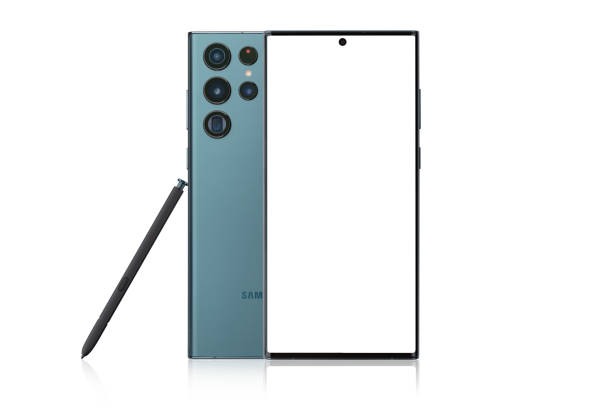
Taking screenshots on your Samsung Galaxy S25 Ultra is easier than ever — and a necessary skill for capturing memes, game highlights, receipts, or that “aha” moment in your favorite app. Whether you’re a traditionalist who loves button combos or prefer gestures and digital assistants, the Galaxy S25 Ultra has you covered. Mastering the methods to screenshot on Galaxy S25 Ultra is essential for any modern power user.
The beauty of the Galaxy S25 Ultra is its flexibility; there are multiple, intuitive ways to capture your screen, ensuring you always get the shot when you need it. Whether you need a quick capture or a long “scroll capture,” I’ll walk you through all the cool methods to screenshot on Galaxy S25 Ultra.

Table of Contents

Using Button Combination to Screenshot on Galaxy S25 Ultra
The easiest way — and the one we all grew up loving — is the physical button combo:
- Press the Side button (power button) and Volume Down button simultaneously.
- Remember, it’s a quick press, not a hold — hold too long and the power menu will pop up instead.
- When successful, the screen flashes and you’ll hear a camera shutter sound (if your volume’s up). Your screenshot is saved in the Gallery app.
Palm Swipe to Capture: A Gesture of Elegance
Want a more magical approach? With the Galaxy S25 Ultra, you can use Palm Swipe to take a screenshot by swiping the edge of your hand across the screen:
- This feature is usually on by default, but to check, go to Settings > Advanced Features > Motions and Gestures > Palm swipe to capture and toggle it on.
- Then just swipe your hand horizontally across the screen and watch the magic happen.
S Pen Screenshot: Stylus Power
The Galaxy S25 Ultra with the S Pen, here’s a stylus-powered screenshot:
- Pull out the S Pen and hover it over the screen.
- Tap the Air Command menu and select Screen Write.
- This takes a screenshot and instantly opens the editing toolbar so you can annotate, doodle, or crop before saving.
Screenshot Using the Edge Panel: Smart and Selective
For those who want precision:
- Activate the Edge Panel via Settings > Display > Edge Panels and enable Smart Select.
- Swipe in from the side to open Edge Panel, tap Smart Select, and choose rectangular, oval, animation, or pin options to grab exactly what you want.
Need more than just the visible screen? Use Scroll Capture to capture entire web pages or long chats:
- Take a screenshot by any method.
- Tap the Scroll Capture icon (two downward arrows) that appears at the bottom.
- Tap repeatedly to capture more scrolls until done. Your Galaxy S25 stitches it all into one long image.
Bonus Tips to Keep Your Screenshot Game Strong
- Edit and share screenshots immediately from the preview thumbnail.
- Change screenshot formats to JPG or PNG in Settings if desired.
- Use voice commands with Bixby or Google Assistant: just say, “Take a screenshot.”
Conclusion
Now that you are familiar with all the methods for how to screenshot on Galaxy S25 Ultra, you’re equipped to capture any moment on your screen, from crucial documents to memorable chats. Whether you prefer the speed of the button combination, the fluidity of the Palm Swipe, or the detail of Smart Select, mastering these techniques enhances your phone’s functionality. Remember, practice makes perfect when performing a quick screenshot on Galaxy S25 Ultra. Locking in those memories, secrets, or “gotcha” moments is now easier than ever. Go ahead and enjoy the full capabilities of taking a screenshot on Galaxy S25 Ultra!