


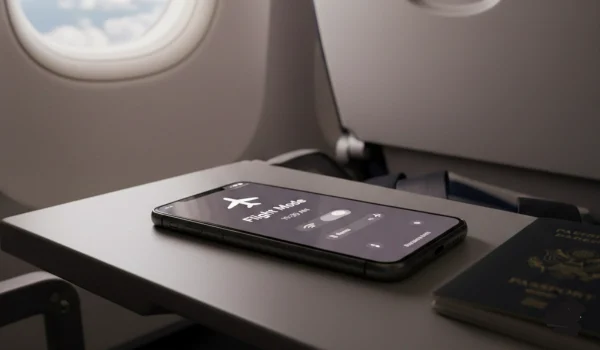
Have you ever needed to disconnect quickly—maybe to save battery, avoid distractions, or manage your wireless connections? That’s where Flight Mode comes in. You can turn Flight Mode on in appropriate situations, and also turn it off as it pleases you.
Picture this: you’re boarding a plane, the cabin lights dim, and the flight attendant reminds everyone to switch off their wireless connections. You reach for your iPhone or Samsung Galaxy, and in that moment, Flight Mode becomes your best friend. But here’s the thing: as already mentioned, it is not just for flying. It is also a handy trick for saving battery, cutting distractions, or resetting your connections when your phone acts up.
With just a tap or a swipe, you can switch it on or off in seconds. Whether you’re using a Samsung Galaxy or an iPhone, here are four simple ways to turn Flight Mode on and off.
Table of Contents
Use the Quick Settings (Samsung) or Control Center (iPhone)
How to turn Flight Mode on and off from the Quick Settings on Samsung Galaxy phones and Control Center on iPhones:
- On Samsung Galaxy phones, swipe down from the top of your screen to open Quick Settings. Tap the Flight Mode icon, and you’re good to go.
- On iPhones, swipe down from the top‑right corner (or up from the bottom on older models) to open Control Center. Tap the Flight Mode button to toggle it instantly.

Go Through the Settings Menu
How to turn Flight Mode on and off through your phone’s Settings menu:
- On Samsung: Head to Settings → Connections → Flight Mode and switch it on or off.
- On iPhone: Navigate to Settings → Flight Mode and toggle the slider.
Use Voice Assistants
Feeling hands‑free? You can ask your phone’s voice assistant to turn Flight Mode on or off.
- On Samsung, say: “Hi Bixby, turn on Flight Mode.”
- On iPhone, ask Siri: “Turn off Flight Mode.”
Lock Screen Shortcuts (Some Models)
Certain Samsung phones let you add Flight Mode as a shortcut on the lock screen. That way, you can toggle it without unlocking your device.
Why Flight Mode Matters
- Battery Saver: Disables wireless radios, helping your phone last longer.
- Focus Tool: Cuts off calls and notifications when you need peace.
- Travel Essential: Keeps airlines happy while still letting you use offline apps.
Wrapping Up
Switching Flight Mode on or off is super simple once you know where to look. Whether you’re swiping through Quick Settings, diving into the Settings menu, or just asking Siri or Bixby, you’ve got options. Next time you need a quick disconnect, you’ll know exactly what to do.