


Experiencing dropped calls, weak mobile signal and other cellular connectivity problems on your iPhone 17 Pro? Don’t worry; this guide walks you through effective steps to restore things.
We’ve all been there: you’re about to make an important call or stream something on the go, and suddenly your iPhone 17 Pro decides it doesn’t want to play nice with your cellular network. Annoying, right?
A number of such issues have left users in both the U.S. and Canada with annoying experiences. If you are one of the many users who are experiencing cellular connectivity problems on your iPhone 17 Pro, the good news is that most of these hiccups are easy to fix, and I’ll walk you through the steps.

Table of Contents
First Things First: The Basics
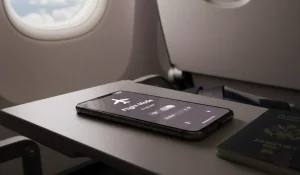
Before diving into anything complicated, check the simple stuff. Is Airplane Mode off? Is Mobile Data switched on? Sometimes a quick restart is all your phone needs to reconnect properly.
Don’t Forget the SIM Card
Your SIM card is the tiny hero that keeps you connected. Pop it out, give it a quick check, and slide it back in. If you suspect the SIM itself is faulty, try it in another phone. That way you’ll know if the issue is with the card or the device.
Reset Network Settings
If your calls keep dropping or data keeps stalling, it might be time for a reset of the network settings:
- Go to Settings > General > Transfer or Reset iPhone > Reset > Reset Network Settings.
- Confirm and enter your passcode if prompted..
Yes, you’ll lose saved Wi‑Fi passwords and VPN setups, but it is like giving your phone a clean slate for all things network‑related. So, be sure to keep records of your Wi-Fi passwords.
Keep Your Software Fresh With iOS Updates
Apple pushes updates for a reason; they often squash bugs that mess with connectivity. Head to Settings → General → Software Update and make sure you’re running the latest iOS version.
Check for Carrier Settings Updates
Apple and carriers often push updates that optimize connectivity:
- Go to Settings > General > About.
- If a carrier update is available, a prompt will appear — tap Update.
- Similarly, check Settings > General > Software Update to install the latest iOS patches, including fixes specifically for iPhone 17 Pro cellular issues.
Staying updated is your best defense against bugs.
Manage Cellular Settings
Sometimes, the cellular connectivity problems on your iPhone 17 Pro are from being in areas where certain connectivity standards have weak coverage. For example, if you are in an area with spotty 5G coverage or service, you can disable 5G temporarily so your iPhone 17 Pro connects on 4G instead. This simple modification can improve your connectivity greatly.
- Go to Settings > Cellular > Cellular Data Options > Voice & Data.
- Select LTE or 5G Auto instead of 5G On for more stable connections and longer battery life.
Sometimes the problem isn’t your phone at all; rather, it is the network. Reach out to your service provider to check for outages or coverage issues. They can also tell you if you need a new SIM card.
Conclusion
Dealing with cellular connectivity problems on your iPhone 17 Pro can be annoying, but the good news is that but they are rarely permanent. With a few quick checks—SIM card, settings, updates, or a reset—you’ll usually be back online in no time. And if all else fails, your carrier is just a call away.
PS: Looking To Transfer Cellular Data From An Old iPhone To A new One?
If you are replacing your iPhone with a newer model and need to transfer cellular data from the old to the new, you will find this video guide useful. You can also watch the video below: