


cPanel version 134 deprecates Site Publisher – but your live website content stays safe! After the update, Site Publisher will no longer be accessible, yet all your existing pages remain online. Wondering how to recreate Site Publisher content and edit it moving forward?
Use cPanel’s new Sitejet Builder tool to easily migrate and customize your Site Publisher static pages. This complete guide shows you how to recreate Site Publisher content with Sitejet Builder in just a few simple steps – no coding required.
Sitejet Builder vs Site Publisher
Site Publisher is a static single page website where you can only publish static content with few details about your blog and cannot edit the content.
Whereas Sitejet Builder is a AI website builder which has dozen of predefined template from which you can choose and customize the content anytime or build the website using AI template by sharing the input.
Steps to Recreate Site Publisher Content:
Ensure you have existing content already installed on the website using Site Publisher, then follow the process below.
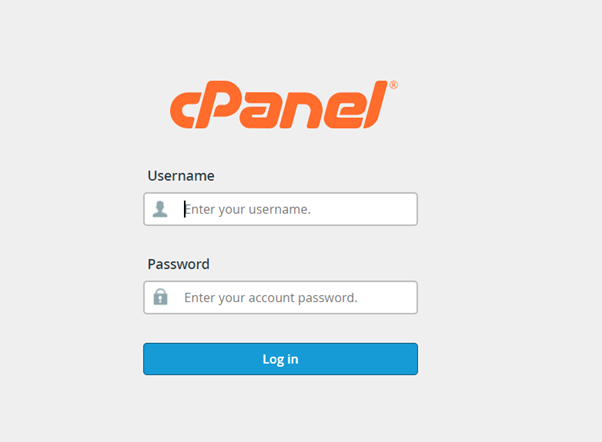
Step 1: Log in to the website’s cPanel.
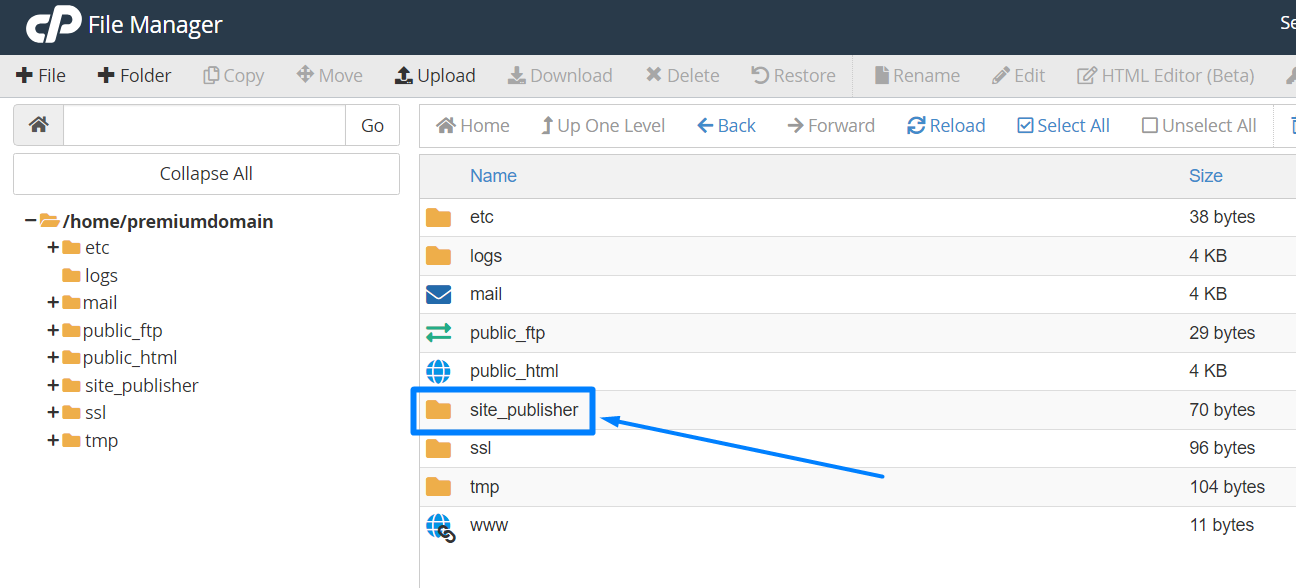
Step 2: Navigate to File Manager > Site Publisher folder.
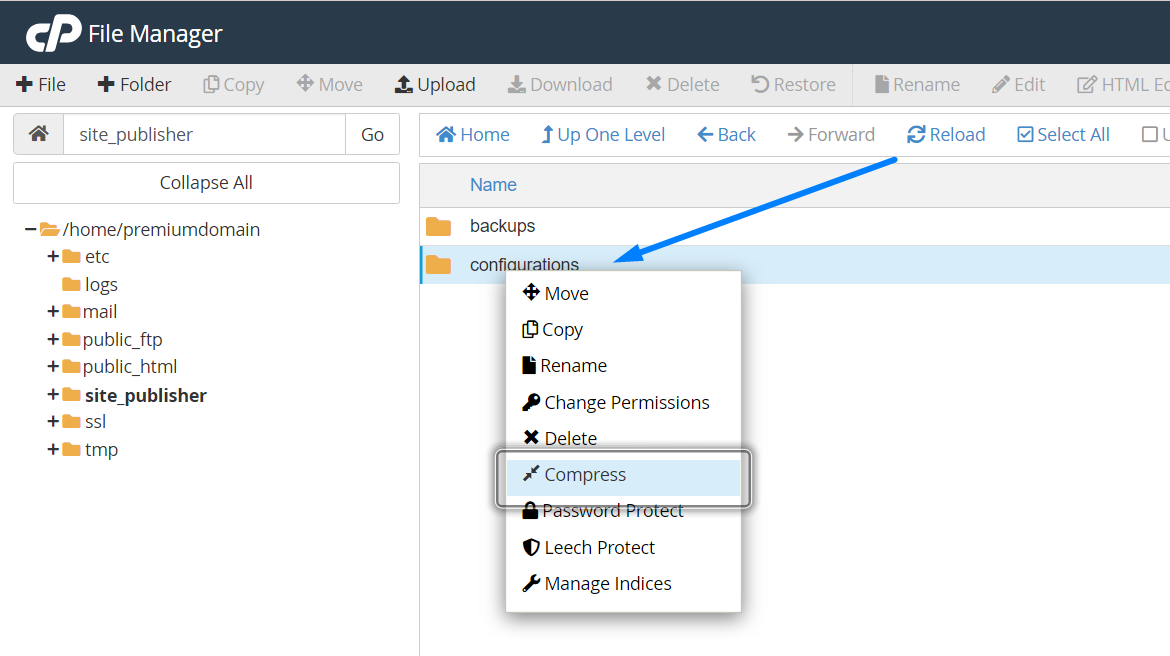
Step 3: Back up the “Configuration” folder by compressing it into a ZIP file and downloading it. Alternatively, download a full cPanel backup for all data. This allows you to update content from JSON files with text information instead of using a web browser.
Step 4: Again from Step 2 in the public_html folder, download the images from the image folder. You now have backups of both the content and images.
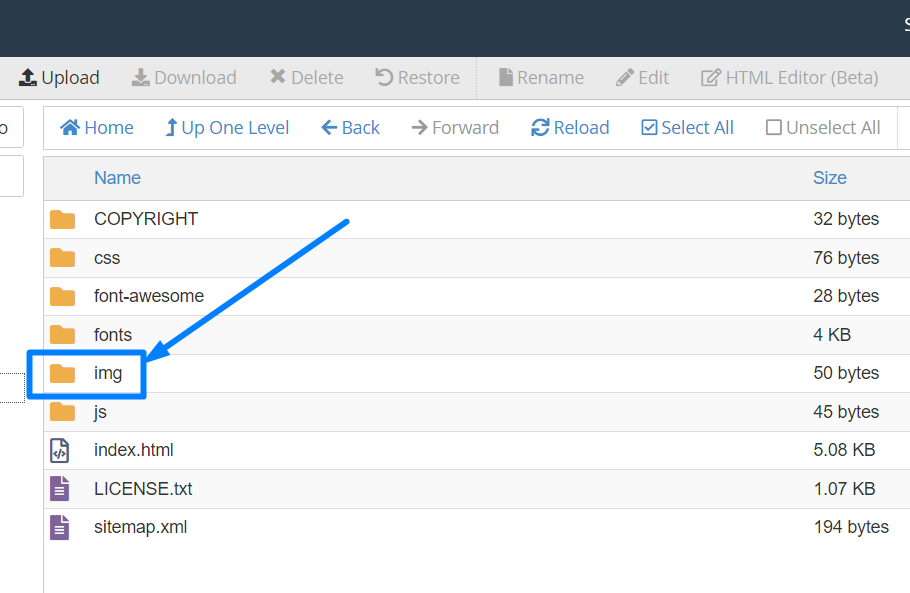
NOTE: You can easily remove the site publisher website files anytime.
Step 5: Now go to the Site Builder option in cPanel.

Step 6: Click the Try Sitejet button next to the website name.
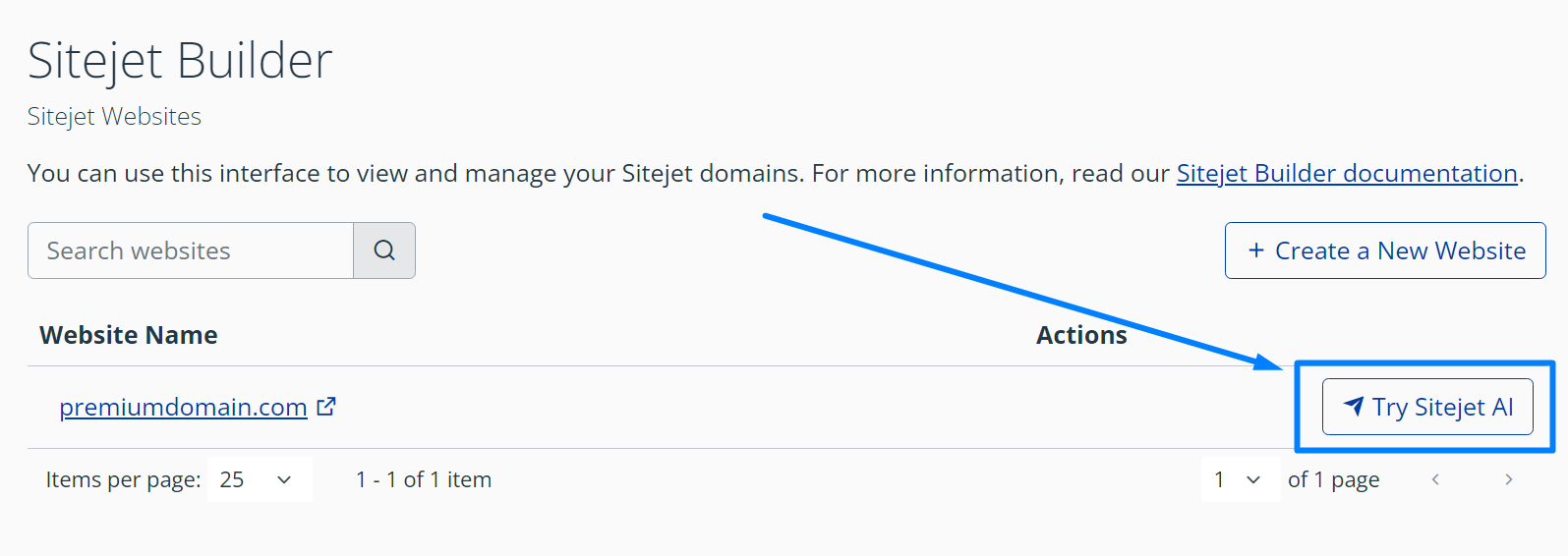
Step 7: Select the Template Selection option on the right side.

Step 8: Choose the same template you used to create the website in Site Publisher. For example, select Business under the vCard template if that’s what you used.
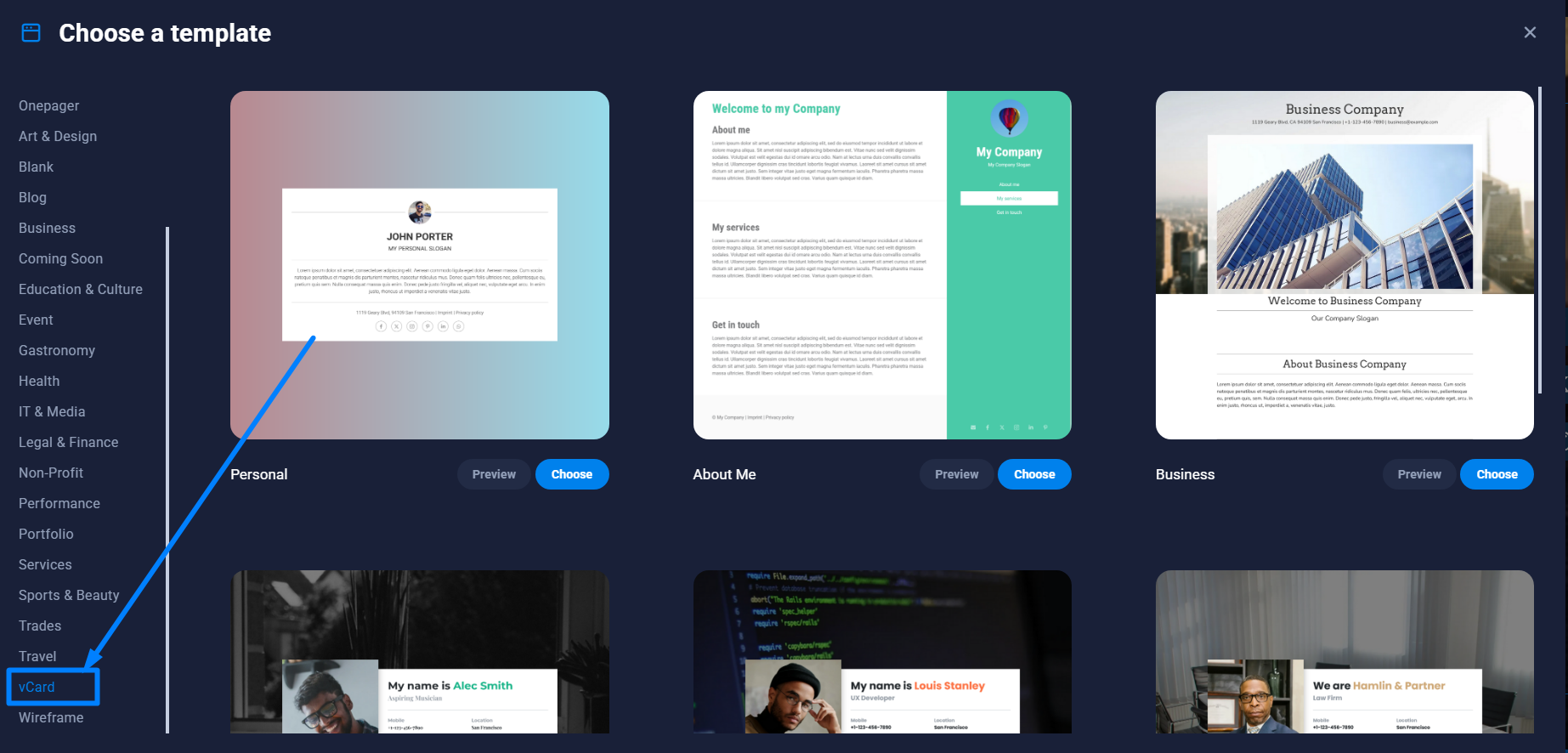
Step 9: Click Choose button near the template name.
Step 10: Once the content displays, replace the placeholder images with the Site Publisher images you downloaded in Step 4.
Step 11: Copy the content either from the web browser by loading the live site or from the text files downloaded in Step 3.
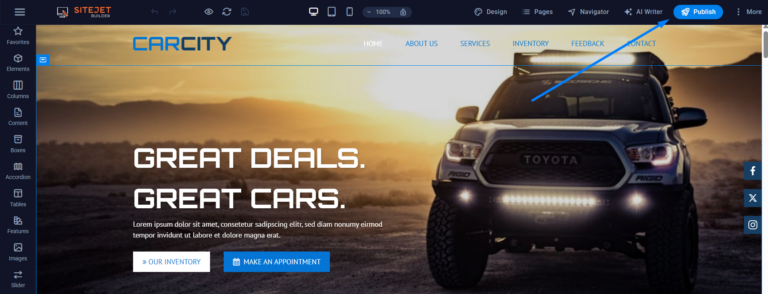
Step 12: Click the Publish button in the top-right corner. This will replace the content in the public_html folder and make your Site Publisher content live using the Sitejet builder.
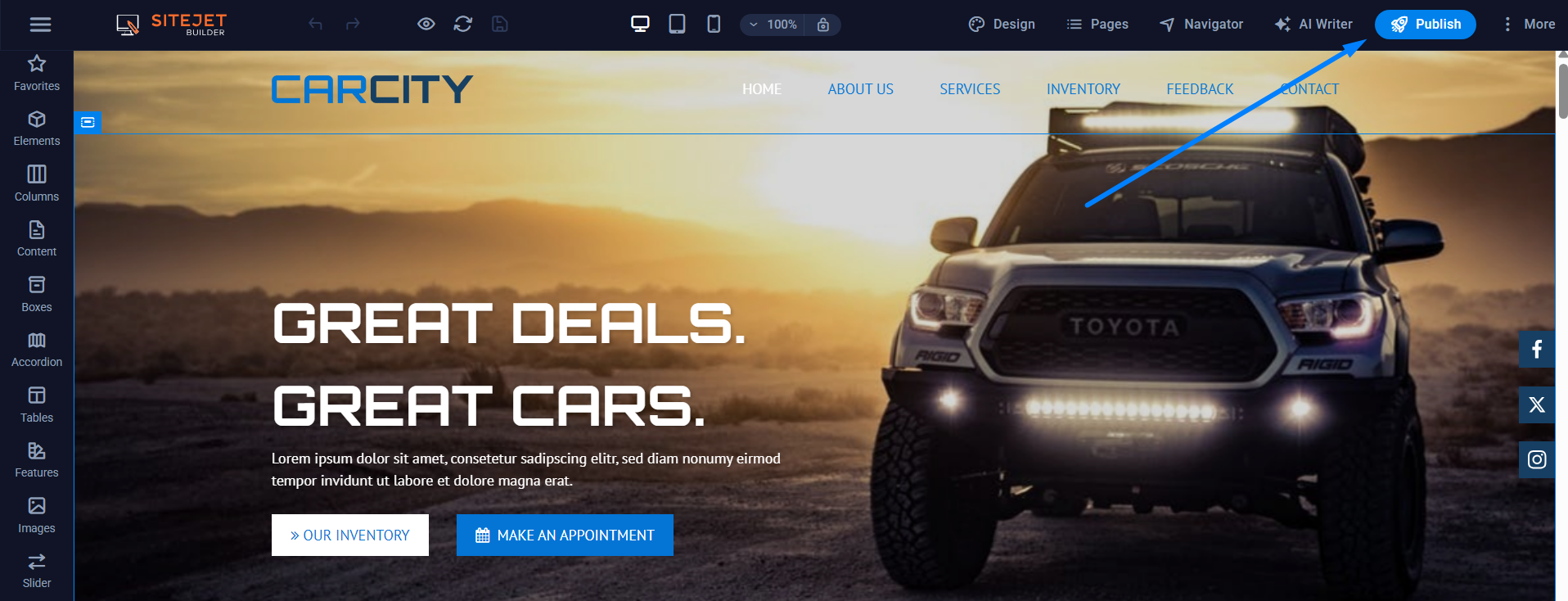
Note: Since Site Publisher lacks a built-in editing feature and only supports static pages, you can easily copy and paste the content, especially since there’s not much of it.
Hope this helps you recover and recreate Site Publisher content using Sitejet builder easily and quickly.