



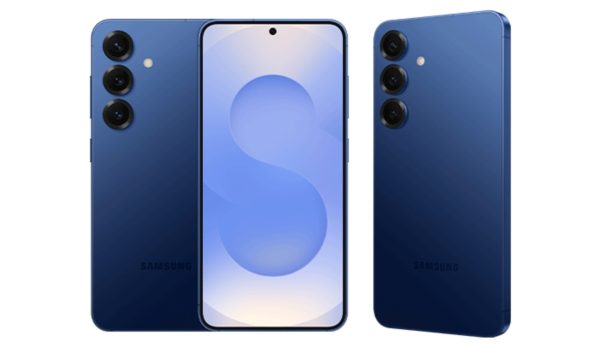
Let’s be honest — charging your phone isn’t exactly thrilling. But Samsung’s Galaxy S25 series is changing that narrative with fresh Animation and Battery Optimizations that make the experience surprisingly engaging. Now, when you plug in your device, you’ll be greeted by sleek new visuals that make waiting feel a little less boring.
Beyond the eye candy, these Animation and Battery Optimizations also work behind the scenes to keep your battery healthier for longer. The phone intelligently manages how it charges, ensuring your battery gets just the right amount of power. In short, Samsung’s latest Animation and Battery Optimizations don’t just make charging look good — they make it smarter too.

Table of Contents

Step 1: Explore and Customize Your Charging Animation
Who says charging has to be dull? Galaxy S25 offers fresh new charging animations displaying smooth, visually appealing patterns while your device powers up.
- Plug in your charger and glance at the screen. You’ll see animations like a glowing orb, bars filling up smoothly, or stylish waves dancing across your lock screen.
- To customize, go to Settings > Lock Screen > Charging animations.
- Select your favorite animation style or even toggle off animations if you prefer minimalist vibes.
- Bonus tip: These animations look especially cool on the Dynamic AMOLED 2X display, turning your lock screen into a light show.
Step 2: Enable Battery Optimizations for Longevity
Besides the fun stuff, Galaxy S25 is packed with smart battery management features to keep your battery healthy longer, so it doesn’t throw a tantrum after a year or two.
- Navigate to Settings > Battery and device care > Battery.
- Toggle on Adaptive Battery, which uses AI to limit battery usage by apps you rarely open. Your battery thanks you.
- Use Battery Protect mode (if available) to limit charging speed once your battery hits 80% when charging overnight, helping extend battery lifespan.
- Enable Power Saving Mode for emergency battery boosts with customizable options for CPU performance, brightness, and background activity.
Step 3: Optimize Charging Habits with Smart Alerts
- Galaxy S25 can nudge you with charging reminders — like when your battery reaches full charge or if you’ve kept your phone plugged in too long.
- You’ll find these in Settings > Battery and device care > Battery > Charging Alerts.
Why These Customizations Matter with the New Animation and Battery Optimizations
The new Animation and Battery Optimizations aren’t just about style — they’re about smarter performance, too. The smooth visuals make your phone feel more alive, while giving you clear cues about what’s happening, like when it’s charging or completing a task.
Behind the scenes, Animation and Battery Optimizations quietly ensure your device stays efficient and lasts longer through the day. In short, Animation and Battery Optimizations bring together beauty and brains — a true win-win for your everyday experience.