


Every domain registrar has a different way or interface for updating the Private Nameservers. In this article, you will be guided on how to update private/child nameserver details in Hostinger.
Steps to Setup Private/Child Nameserver:
Step 1: Login
Login into your Hostinger account.
Step 2: Choose the domain and click the nameserver option.
Navigate to the domain tab and choose the domain that you would like to change the nameserver.
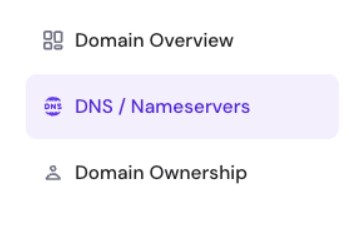
Then click DNS/Nameservers.
Step 3: Select Child nameserver option.
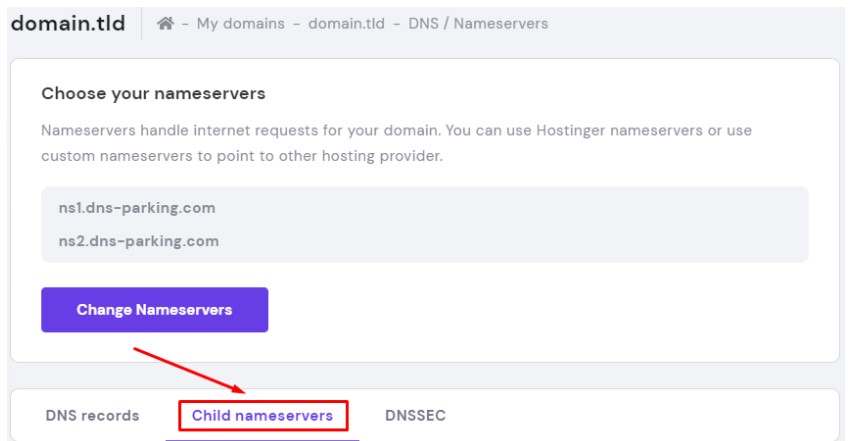
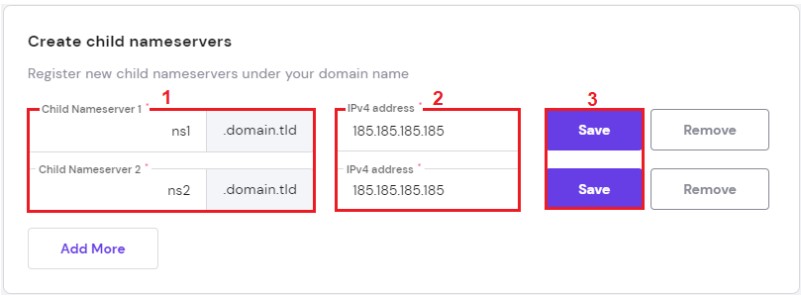
Step 4: Update child nameserver.
Child Nameserver 1 : ns1
IPv4 Address: Enter your website IP
Click save
Child Nameserver 2 : ns2
IPv4 Address: Enter your website IP
Click save
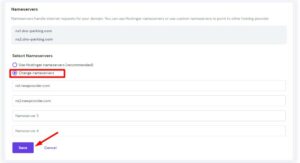
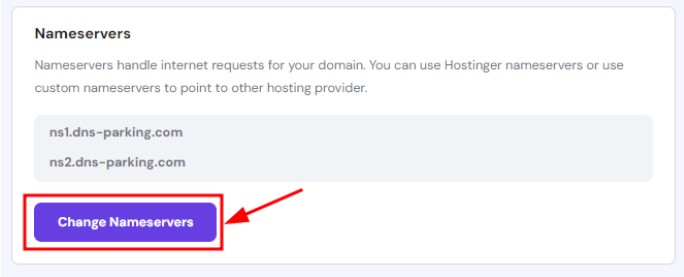
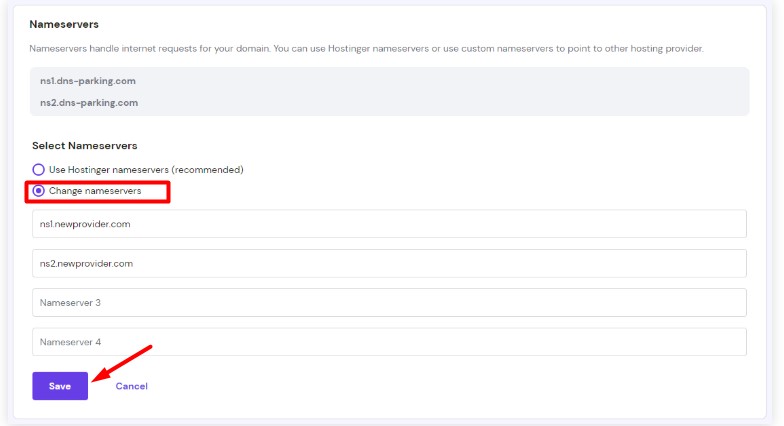
Step 5: Select custom nameserver option.
On the same page under DNS/Nameserver option, click Change Name servers.
Step 6 : Update custom nameserver option.
Enter the custom nameserver in the field 1 and 2. Click save.
Now wait for propagation time to be completed to work on your site.