



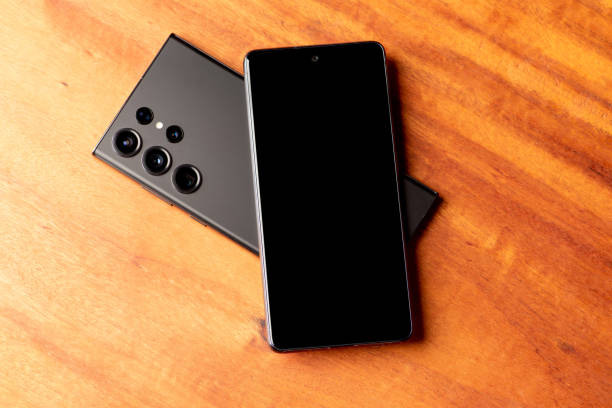
If your Samsung Galaxy S25 Ultra starts feeling like it’s preparing for lift-off every time you fire up a game, you’re definitely not the only one. Overheating During Gaming is a common issue for power users who demand top performance from their devices. When those graphics get intense, your phone can easily start to feel more like a pocket-sized furnace than a flagship.
But don’t worry — we’ve got you covered. This guide breaks down smart, simple ways to prevent Overheating During Gaming, so you can focus on winning, not cooling. With the right tweaks and a few easy habits, you can say goodbye to lag and performance drops caused by Overheating During Gaming, keeping your Galaxy S25 Ultra cool, fast, and ready for action.

Table of Contents

Reasons For Galaxy S25 Ultra Overheating During Gaming
Your Galaxy S25 Ultra is a beast packed with a Snapdragon 8 Elite chip that can put serious power behind intense games. But all that power means more heat — especially when the CPU and GPU are running full-throttle for long gaming marathons. Add in background apps, high refresh rates, max brightness, and even environmental factors like summer heat, and you get a recipe for overheating.
Step 1: Optimize Your Device Usage
Heavy multitasking or running resource-hungry apps alongside games can push the processor too hard. Close unnecessary apps before gaming:
- Go to Settings > Battery & Device Care > Memory.
- Clear unused apps and background processes.
Less strain, less heat.
Step 2: Tweak Your Settings
Lowering your display refresh rate and brightness can make a big difference:
- Set the refresh rate from 120Hz to 60Hz in Settings > Display > Motion smoothness.
- Reduce screen brightness.
- Turn off unused features like Bluetooth, 5G, and GPS if you don’t need them.
Power saving modes help too, but might reduce performance slightly.
Step 3: Manage Rogue Apps and Battery Usage
Some apps run wild in the background draining battery and generating heat. Check battery usage:
- Settings > Battery & Device Care > Battery > Background Usage Limits.
- Put unused apps to sleep.
- Update or uninstall apps causing excessive power drain.
Step 4: Try Samsung’s Thermal Guardian
Download Good Guardians from Galaxy Store, then:
- Open the app and go to Thermal Guardian.
- Adjust thresholds to proactively manage temperature.
- Monitor device heat in real time.
Step 5: Don’t Charge and Game Simultaneously
Stuffing your phone with power while squeezing out every last frame will definitely cook it. Plug in for charging breaks, not gaming marathons.
Step 6: Wipe Cache Partition for a Fresh Start
Temporary system files can accumulate and cause slowdowns and heat. To wipe cache:
- Power off.
- Press and hold Power + Volume Up to enter Recovery Mode.
- Select Wipe Cache Partition.
- Restart phone.
Step 7: Consider Environment and Case
Keep your phone out of direct sunlight and avoid bulky cases that trap heat. Opt for breathable cases designed to dissipate warmth.
Conclusion
Following these tips can make a big difference in keeping your device running smoothly and your sessions uninterrupted. Overheating During Gaming doesn’t just slow down performance — it can shorten your phone’s lifespan, too. So take a few smart steps, keep things cool, and enjoy every match without worry. Remember, managing Overheating During Gaming means more playtime, better performance, and a happier device. Stay chill, stay in control, and don’t let Overheating During Gaming steal your fun.