

So you lined up what should’ve been an epic ultra-wide shot — a breathtaking skyline, a massive mountain range, or maybe a cleverly squeezed-in group selfie — and then boom! Your picture gets splashed with unexpected colors like your phone suddenly switched to festival mode. That strange streaking effect? Yep, that’s chromatic aberration, but most people just call it the Rainbow Color Display.
The good news is you’re not stuck with it. This guide will show you exactly how to deal with the Rainbow Color Display issue and keep your photos looking clean, crisp, and drama-free. With a few simple tips, you’ll know how to prevent that pesky Rainbow Color Display from messing with your masterpieces ever again.

Table of Contents

What’s Up with the Rainbow Color Display?
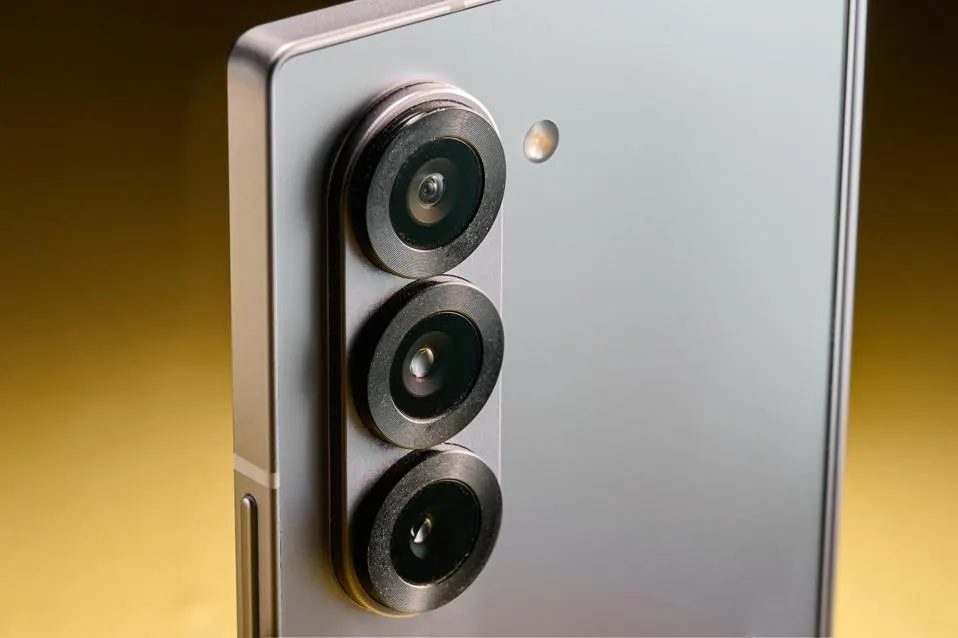
First, a quick science detour: those rainbow fringes happen because your ultra-wide lens bends light differently at its edges. It’s like light is splitting up to do its own dance, and your phone’s camera has trouble keeping it all together perfectly. Ultra-wide lenses are great for fitting more into the frame, but they sometimes introduce these rainbow glitches — especially under bright light or complex backgrounds.
Step 1: Update Your Camera Software
Manufacturers regularly release software updates that improve lens corrections and reduce chromatic aberration. So, check for:
- Camera app updates on your app store.
- System updates in Settings > Software Update.
A fresh update might have just the magic wand your rainbow problem needs.
Step 2: Use Built-in Lens Correction Features
Many smartphones now include ultra-wide lens distortion correction in their camera settings. Dive into:
- Camera settings > Ultra-wide lens correction or similar options.
- Toggle these features on; they can help straighten lines and reduce color fringes.
Step 3: Avoid Extreme Bright or Contrasting Lighting
Since rainbow colors pop most under challenging light, try:
- Avoid shooting ultra-wide directly into strong light sources like the sun.
- Use HDR mode to balance contrast better.
- Shoot during golden hour — when light is softer and friendlier to your sensor.
Step 4: Edit Your Photos Like a Pro
If the rainbow effect still sneaks in, no worries — photo editing apps can fix this:
- Use apps like Snapseed, Lightroom, or Adobe Photoshop Express.
- Look for lens correction, chromatic aberration, or fringe removal tools.
- Adjust colors and saturation around the edges to tone down those pesky rainbows.
Step 5: Experiment with Third-Party Camera Apps
Some third-party camera apps have better ultra-wide processing algorithms and might reduce rainbow effects compared to your phone’s default app.
Try apps like Open Camera or Filmic Pro to compare results.
Conclusion
By following these steps, you’ll be able to tame even the most dramatic light flares and turn them into clean, stunning photos you’ll actually want to share. With a little practice, handling a Rainbow Color Display becomes second nature, and your shots will look sharper than ever. So go ahead — conquer that Rainbow Color Display, refine your angles, and let every photo shine without the distractions of a wild Rainbow Color Display getting in the way.