



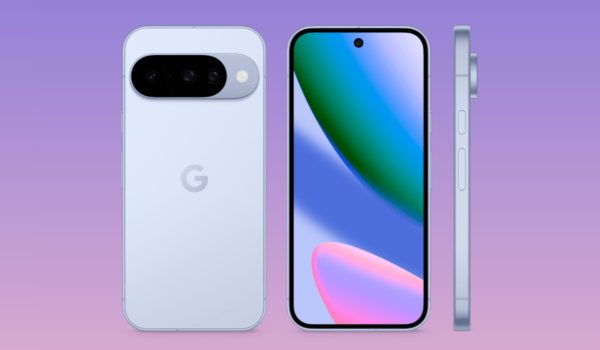
Becoming a beta tester for the Android 16 QPR2 Beta 3.2 is your ticket to experiencing Google’s newest features before everyone else. Whether you’re rocking a Pixel 6 or the latest flagship, this guide will walk you through how to enroll in the Android Beta Program and install the Android 16 QPR2 Beta 3.2 safely — no tech panic required.
We’ll cover everything you need to know to make the process smooth and stress-free, so you can enjoy the perks of early access without worrying about turning your phone into a paperweight. Let’s get your device running the Android 16 QPR2 Beta — like a pro, and with a bit of style.

Table of Contents

What’s the Buzz About Android 16 QPR2 Beta 3.2?
This latest beta is all about smoothing out glitches, fixing pesky bugs, and prepping your Pixel for the stable Android 16 release. Think of it as polishing the tech gem you already own, with cool under-the-hood tweaks and better system stability.
Step 1: Prepare Your Phone (Backups Are Your Friend)
Before diving headfirst into the beta pool:
- Back up your data. Use Samsung Cloud, Google Drive, or your preferred backup solution. Because, well, betas are fun but sometimes unpredictable.
- Ensure your Pixel has at least 50% battery or keep it plugged in during the update.
- Connect to a stable Wi-Fi network to avoid interruptions or data charges while downloading.
Step 2: Enroll in the Android Beta Program
- Open your browser and head to the official
- Android Beta Program page.
- Sign in with the same Google account linked to your Pixel.
- Find your eligible device (Pixel 6 or newer) and click “Opt-in” to enroll.
- Agree to the terms and conditions — yes, you’re officially volunteering for cutting-edge tech adventures.
- Within minutes, you should get a notification on your Pixel prompting you to download the latest beta update.
Step 3: Download and Install the Android 16 QPR2 Beta 3.2 Update
- Open Settings on your Pixel.
- Scroll to System > System update.
- Tap Check for update, and presto! Your Pixel should find the Android 16 QPR2 Beta 3.2 update waiting for you.
- Tap Download and install and follow on-screen instructions. Your phone will reboot a couple of times — more beauty sleep!
Manual Update Option
If the OTA update doesn’t hit your device fast enough or you’re running impatient mode:
- Grab the factory image or OTA file from the
- Android Developer site
- Enable USB debugging and unlock the bootloader (warning: this wipes your data, so backup again).
- Use ADB commands on your PC to sideload the update — this is for advanced users who want full control and don’t mind a little command-line magic.
Step 4: Post-Update Tips for a Smooth Ride
- Clear cache if you notice any hiccups in performance.
- Use the Android Beta Feedback app to report any quirks or bugs you stumble upon (because your feedback shapes the final release).
- Keep an eye on system stability and app compatibility as some apps might not fully play nice with beta software yet.
Conclusion
So, what’s in it for you besides the bragging rights? Early access to the latest features, system upgrades, and performance tweaks that most users won’t see for months. Sure, things might get a little glitchy now and then, but that’s part of the fun of testing the Android 16 QPR2 Beta.
It’s your chance to experience the future of Android before anyone else. So buckle up, dive into the Android 16 QPR2 Beta, and enjoy being part of the community that shapes what comes next. After all, exploring the Android 16 QPR2 Beta is like taking your phone on an exclusive backstage tour of Android’s evolution.